App Settings
Comic Libraries
Configure your comic library locations. Each library can have a custom name and path.
/e/Manga:/manga), then add the library path here (e.g.,
/manga).
Folder Monitoring
Configure the Watched and Target folders. Other
monitoring features can be adjusted here as well.
Enables auto-conversion of CBR/RAR files to CBZ in your Watch folder.
If enabled, the app will process files in sub-directories of your
/downloads/temp folder.
When enabled, ZIP files placed in the Watch folder will automatically be unzipped.
If enabled, when processing files in your
/downloads/temp folder, the
sub-dirctories will be moved as well.
When a downloaded directory contains only one file, consolidate it into a series folder by stripping the issue number from the directory name. (e.g.,
PEP Comics 140/ → PEP Comics/)
When enabled, files will be automatically renamed using the built-in naming rules when moved from your
/downloads/temp folder.
Automatically removes temporary download files (.crdownload, .tmp, .part) from the downloads folder.
Trash Can
/cache/trash).
Directory & File Processing Settings
Settings related to Directory processing features.
If enabled, when performing CBR --> CBZ conversion on a directory, CLU will convert all files in subdirectories as well.
Settings related to Directory & File processing features.
Custom Naming Settings
Configure custom patterns for renaming comic files. You can use variables to create your own naming convention, or leave empty to use the default rename logic.
If enabled, files will be renamed using your custom pattern instead of the default rename logic.
Automatically rename files after metadata is fetched from the API.
{series_name}, {volume_number}, {year},
{issue_number}, {issue_title}
•
{series_name} {issue_number} ({year}) →
Spider-Man 2099 044 (1992).cbz•
{series_name} [{year}] {issue_number} →
Spider-Man 2099 [1992] 044.cbz•
issue{issue_number} → issue001.cbz•
{volume_number}_{issue_number} → v2_044.cbz•
{series_name} {issue_number} - {issue_title} ({year}) →
Spider-Man 2099 044 - The Last Dance (1992).cbz
{publisher}, {series_name}, {volume_number},
{start_year}, {issue_number}
•
{publisher}/{series_name}/v{start_year} →
Marvel/Spider-Man 2099/v1992/•
{publisher}/{series_name} → Marvel/Spider-Man 2099/•
{series_name} [{start_year}] → Spider-Man 2099 [1992]/•
{publisher}/{volume_number} → Marvel/v2/
API Download Configuration
These options, along with the Chrome extension, will let you `right-click`
links and send them to CLU to be downloaded to your /watch folder.
Download Provider Priority
Set the order CLU tries download providers from GetComics. If a provider fails or its link isn't available, CLU tries the next one.
Search Variant Settings
Configure how GetComics handles different publication types and format variants during search matching.
GetComics Wanted Issues Simulation
Simulate the full wanted-issues search across all tracked series. Shows exactly what would be searched, found, scored, and downloaded — without making any actual downloads.
Komga Reading Sync
Sync reading history and progress from your Komga server to CLU.
Library Path Mapping
Map each CLU library to its corresponding Komga path prefix. Leave the Komga path empty to skip a library during sync.
Loading libraries...
Sync Schedule
Provider Credentials
Configure API credentials for metadata providers. Credentials are stored encrypted.
Library Provider Settings
Configure which metadata providers to use for each library and their priority order.
Performance & Timeout Settings
Configure timeout settings for large file operations and performance optimizations.
Timezone Settings
Set your local timezone for accurate reading history tracking.
Cache Management
Clear cached data to refresh statistics and file listings.
Index & Sync Management
Manage the application's file search index stored in SQLite. The index provides fast searching
across your entire library.
How it works: The file index is stored persistently in the database and
automatically updates when you move, rename, or delete files.
You can manually rebuild it or schedule automatic rebuilds to ensure data accuracy.
Checking...
Checking...
Not scheduled
Automatic Rebuild Schedule
Configure automatic file index rebuilds to keep your search results up-to-date.
GetComics Scrape Index Schedule
Pre-populate the GetComics scrape index by scraping sitemap URLs for tracked series. The scrape index stores page titles, issue info, and download links locally so future wanted-issues searches don't need to hit GetComics live.
Loading... entries
Checking...
Automatic Series Sync Schedule
Configure automatic syncing of tracked series from Metron API to check for new issues.
GetComics Auto-Download Schedule
Automatically search GetComics for wanted issues (with today's release date or later) and queue downloads.
Reading List Sync Schedule
Automatically sync GitHub-sourced reading lists to detect changes.
Missing Issue Configuration
Update these settings to ignore terms or files when the app is performing a Missing Issue scan.
Logging & Debugging
Configure application logging settings. Debug logging provides detailed diagnostic information useful for troubleshooting.
When enabled, detailed debug messages will appear in the App Logs. This can help with troubleshooting but may increase log file size. Changes take effect after saving.
ComicInfo.XML Update Settings
Enable/Disable features for updating or cleaning ComicInfo.xml
files. This proecess runs on a single directory, extracts the ComicInfo.xml file,
reads and makes updates and then recompresses the file.
Reads the alpha-numeric first file in the directory and attempts to extract the 4-digit year from the filename.
If enabled, when the ComicInfo.xml update function is run, the
Comments will have all headers, bold text and tables removed.
If enabled, when the ComicInfo.xml update function is run, 'Covers & Creators' tables will be removed from the
Comments.
Theme Selection
Choose a Bootstrap theme for the application. Themes provided by Bootswatch.
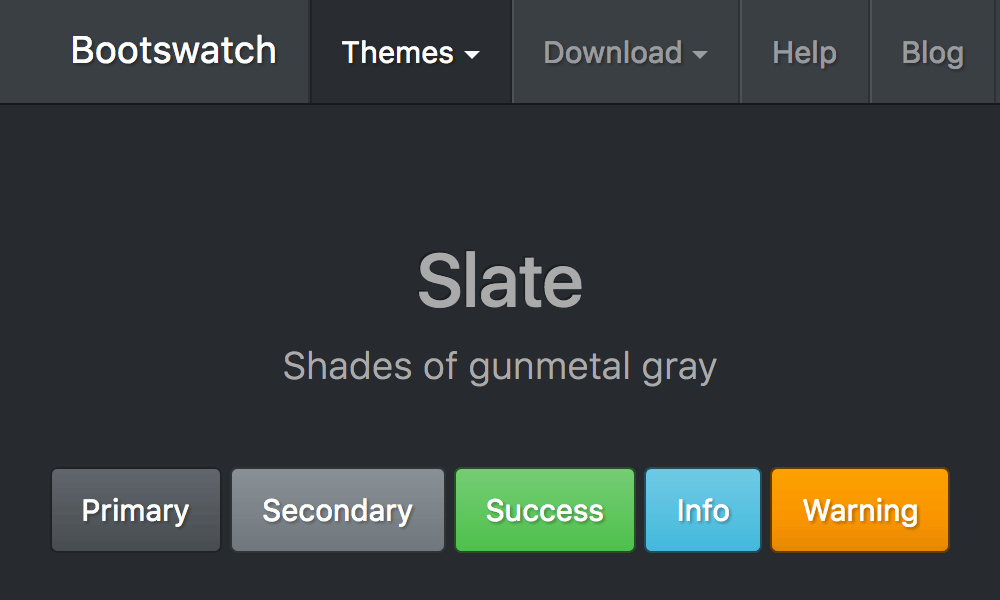
Save settings to apply this theme.
Dashboard Layout
Configure which sections appear on your collection dashboard and their display order.
-
Favorite Collections
-
Want to Read
-
Continue Reading
-
On the Stack
-
Discover / Recommendations (Also requires Recommendations enabled)
-
Recently Added
-
Library
Recommendation Service
Configure AI-powered recommendations for your reading list. Requires an API key from your preferred provider.